
Creating Content
Upload media, write captions, pick target social accounts, and create posts, carousels, and stories — with a live per-platform preview.
Starting a New Post
Open a content calendar and click Add Content. The creation form opens with a live preview that mimics how the post will look on each selected platform.
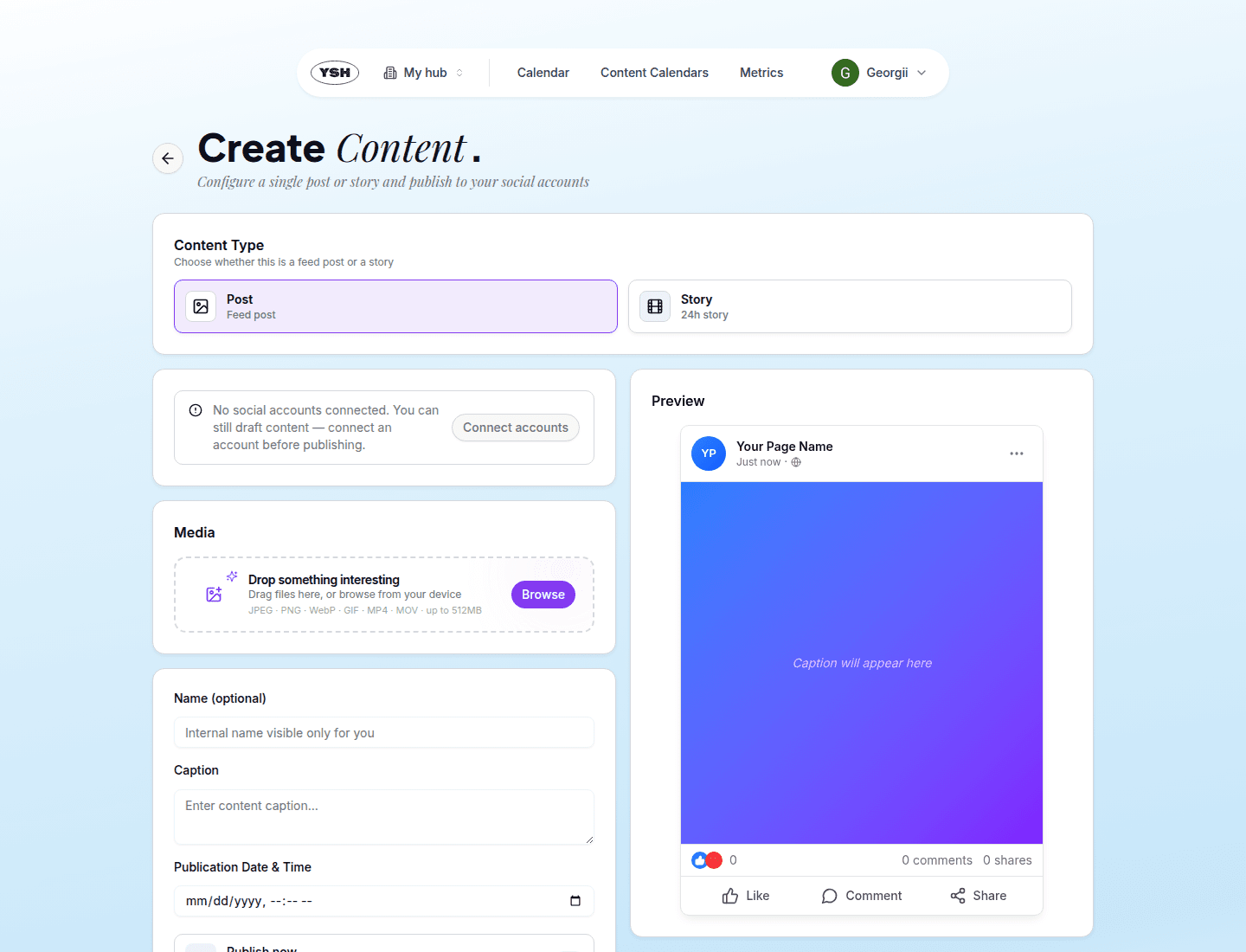
The Creation Form
- Content type — choose between a feed Post and a Story. A post with several images automatically becomes a carousel.
- Social accounts — select the accounts this content will be published to. Platform-specific options appear inline: TikTok asks for privacy and posting options, Pinterest asks for the target board. YSH validates the combination of files and platforms and explains any problem (for example, TikTok does not accept PNG images).
- Media — drag and drop images or videos into the upload zone, or click to browse. You can reorder and remove files, and pick a poster frame (or upload a custom cover) for videos.
- Name — an optional internal name, visible only to your team.
- Caption — the post text used on all selected platforms.
- Publication date & time — when the content should be auto-published. Leave empty to schedule later.
Two toggles control the workflow:
- Skip review — the content is created as Approved instead of going to review.
- Publish now — the content is published immediately after creation (implies skipping review).
Click Create content. By default the new content goes into the In Review status — see Review & Approval.
The Content Detail Page
Click any content card to open its detail page: media preview with comments, caption, status, publication info per account, and the version history.
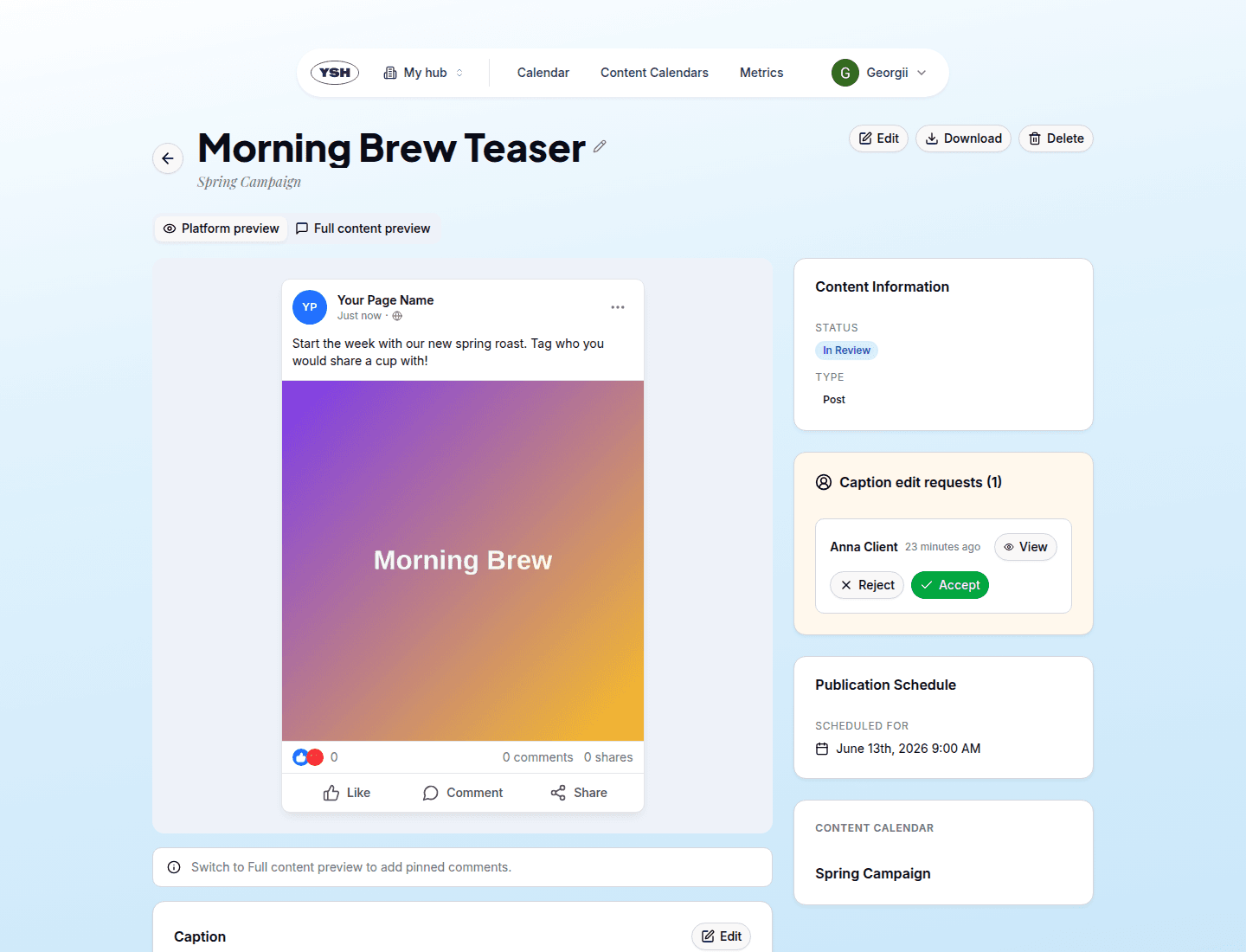
From here you can:
- Edit — change media, caption, accounts, and the publication date. Approved content is locked: only the publication date can be changed.
- Send to Review — available after a reviewer requested revisions or rejected the content.
- Publish Now / Retry Publish — for approved or failed content.
- Download the media, or Delete the content.
- Rename the content inline by clicking its name.
Versions
Every review round can get a new version. Upload a new version with revised media or caption — earlier versions stay in the Version History with their comments, and you can open any historical version to see what reviewers saw at the time.