
AI Assistant & MCP
Connect Claude or another MCP-compatible AI assistant to Your Social Hub, authorize access safely, and use AI to inspect calendars, draft ideas, and create content for review.
What You Can Do
Your Social Hub has a built-in Model Context Protocol (MCP) server that lets a compatible AI assistant work with the hubs you already have access to. The official Your Social Hub plugin for Claude adds guided workflows on top of that connection.
You can ask the assistant to:
- Review hubs, content calendars, content, and Ideas Hub entries.
- Find content that is blocked or missing a publication date.
- Draft captions and ideas in the voice of your existing content.
- Turn finished ideas into content drafts for review.
- Review connected-account metrics and identify top-performing posts. Metrics require the Admin role.
Before You Connect
You need a YSH account with the Content Creator or Admin role in at least one hub. A reviewer-only account can authorize a connection but cannot access hub data.
For the official plugin, use Claude Cowork or Claude Code. For another MCP-compatible client, connect directly to the built-in server at https://www.yoursocialhub.online/api/mcp/v1.
Install in Claude Cowork
- In the Claude desktop app, open Settings → Customize → Plugins.
- Select Add → Add marketplace.
- Enter
yoursocialhub/ysh-ai-plugin, leave automatic syncing enabled, and select Sync. - Open the Personal tab, choose Your Social Hub, and select Install.
- Open the plugin's Connectors tab and select Connect beside
your-social-hub. - Sign in to YSH in the browser window and approve the permissions you want Claude to use.
Installing the plugin and connecting the account are separate steps; both are required. If your organization blocks third-party plugins, ask its Claude owner to enable Cowork, Skills, and third-party plugins, or install the release zip with Add → Upload plugin.
Install in Claude Code
Run these commands inside Claude Code, in order:
- Add the marketplace with
/plugin marketplace add yoursocialhub/ysh-ai-plugin. - Install the plugin with
/plugin install your-social-hub@ysh-plugins. - Run
/mcp, chooseyour-social-hub, and select Authenticate. - Sign in to YSH in the browser and approve the requested permissions.
Use the marketplace address exactly as shown. Do not add .git or /tree/main.
Connect Another MCP Client
YSH's MCP server uses Streamable HTTP and OAuth 2.1 with PKCE. In an MCP client that supports remote authenticated servers, add this server URL:
https://www.yoursocialhub.online/api/mcp/v1
Start the connection from your client. It will discover the YSH authorization service, open YSH in your browser, and return to the client after you sign in and approve access. No API key or social-network credential is required.
Approve Access
The consent screen lists each permission requested by the assistant. Leave all permissions selected for the complete plugin experience, or clear write permissions for a read-only connection. If you do not grant a permission, its related tools will not be available to the assistant.
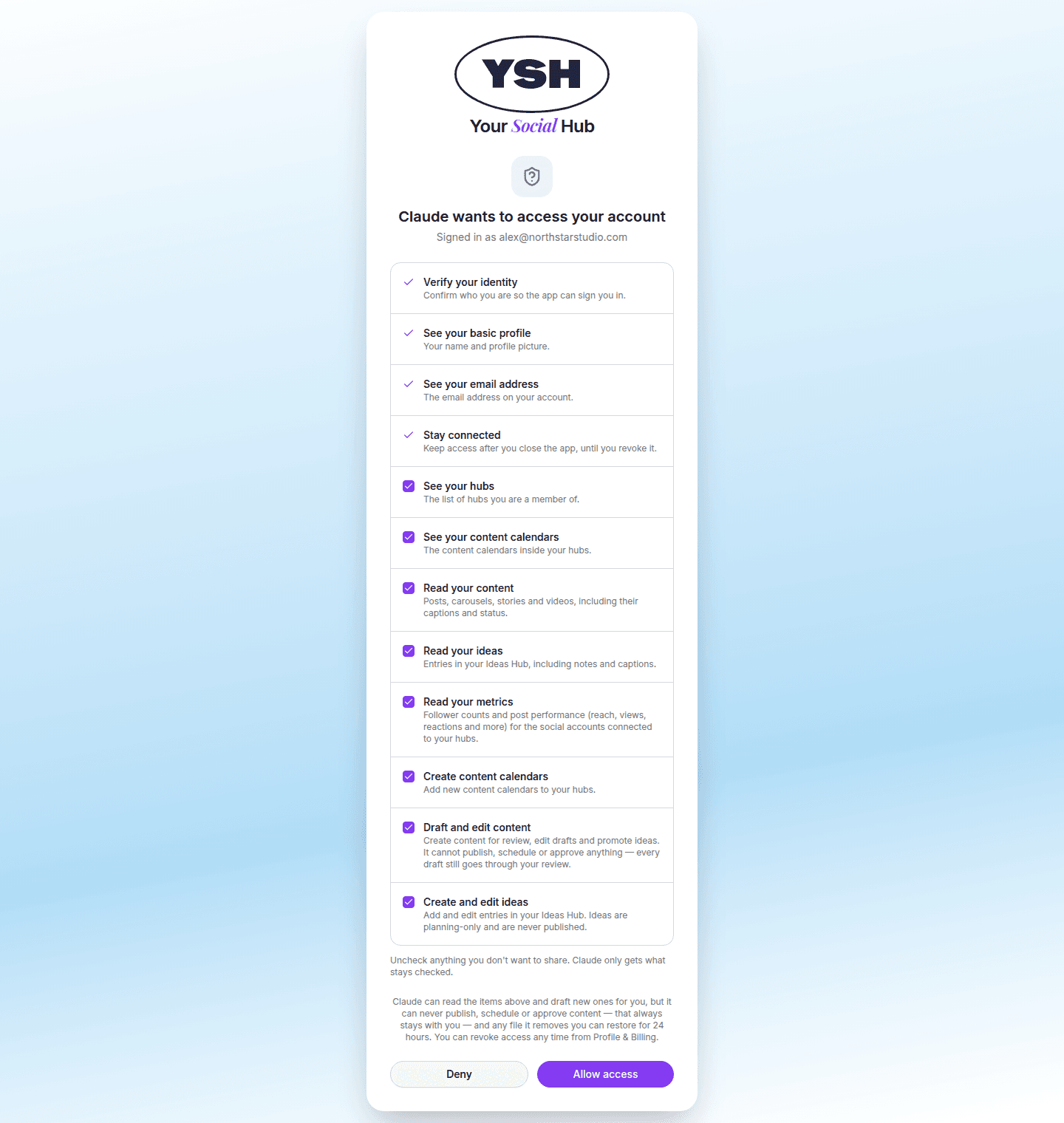
Every request is also checked against your current hub membership. Authorization does not give the assistant access to hubs or metrics that your YSH account cannot access.
Check the Connection
In Claude, run /your-social-hub:check to see the tools and permissions available to the current connection. Then try asking: Which hubs do I have access to?
Useful requests include:
- What is stuck in the August calendar?
- Plan next week from the Ideas Hub.
- Draft five carousel ideas for the launch in our usual voice.
- Send these finished ideas for review.
- Which posts performed best over the last 30 days?
The plugin also provides /your-social-hub:brief for a calendar summary, /your-social-hub:metrics for a performance snapshot, and /your-social-hub:capture to turn one sentence into an idea.
Permissions and Safety
- Read permissions cover hubs, content calendars, content, ideas, and metrics.
- Write permissions allow the assistant to create calendars, ideas, and review-bound content drafts or update eligible drafts.
- Metrics additionally require the Admin role for the hub.
- Social account access tokens, refresh tokens, and storage keys are never returned to the assistant.
- The connection cannot manage social accounts or interact with already-published posts.
Treat the assistant like a teammate with your permissions: review proposed changes before confirming writes, and keep human approval in your publishing workflow.
Disconnect or Reauthorize
Open Profile & Billing → Connected Apps in YSH to revoke access at any time. If the assistant can read data but cannot save ideas or drafts, revoke or disconnect it, connect again, and approve the required write permissions.
If Claude says the tools are missing, confirm that the plugin is both installed and connected, then run /your-social-hub:check again.