
Hubs & Team
Hubs are your workspaces, owned by a team. Switch between hubs, manage hub settings, invite team members, and control roles from the Team page.
Hubs
A hub holds everything you work with: connected social accounts, content calendars, and content. Hubs are owned by a team, and every team member has access to all of the team's hubs with the same role.
Switching Hubs
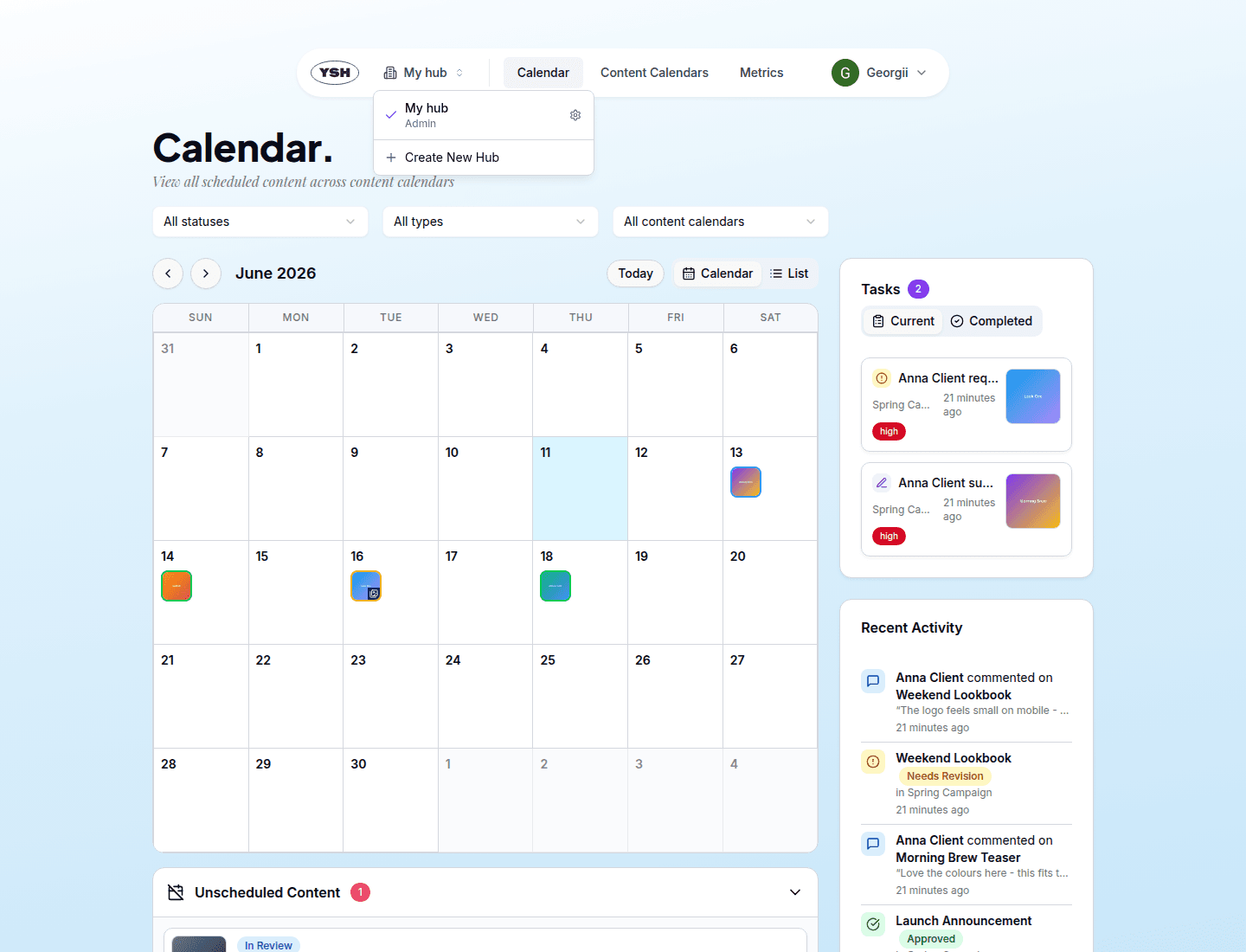
The hub switcher sits in the top navigation bar, next to the logo. Click it to see all hubs you have access to, jump to another hub, or open a hub's settings via the gear icon. Create New Hub at the bottom creates another workspace.
Hub Settings
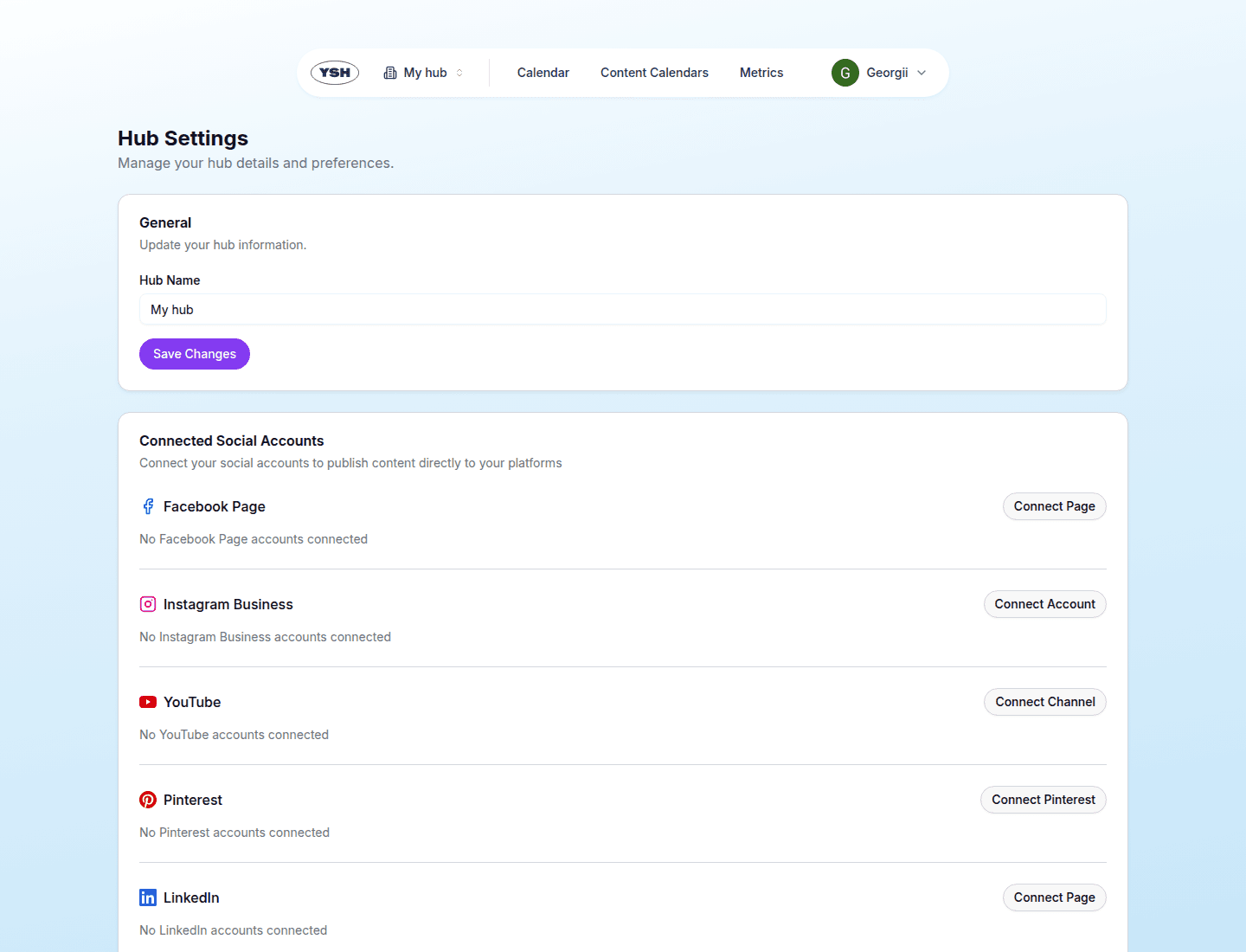
Open Hub Settings from the hub switcher's gear icon. Here admins can:
- Rename the hub in the General card.
- Manage Connected Social Accounts — see Connecting Social Accounts.
- Delete the hub in the Danger Zone. This permanently removes the hub and all of its content and cannot be undone.
Team Members
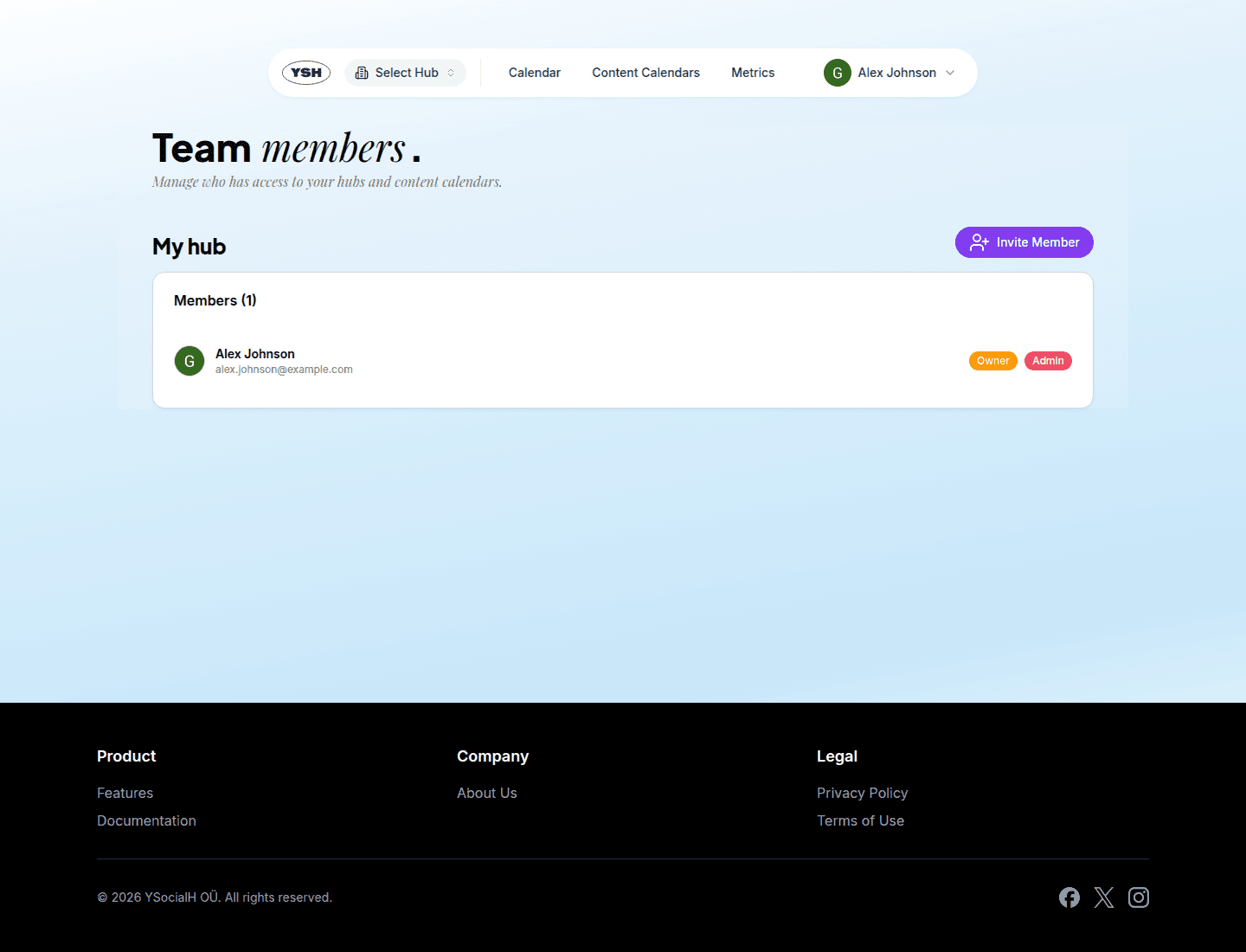
Open Team members from your user menu (your avatar in the top-right corner). The page lists every team you belong to with its members and pending invitations.
Roles
- Content Creator — can create and edit content, write comments, send to review, schedule publications, and manage content calendars.
- Admin — full access, including member management and team settings.
Inviting Members
Click Invite Member, enter the colleague's email address, pick a role, and send the invitation.
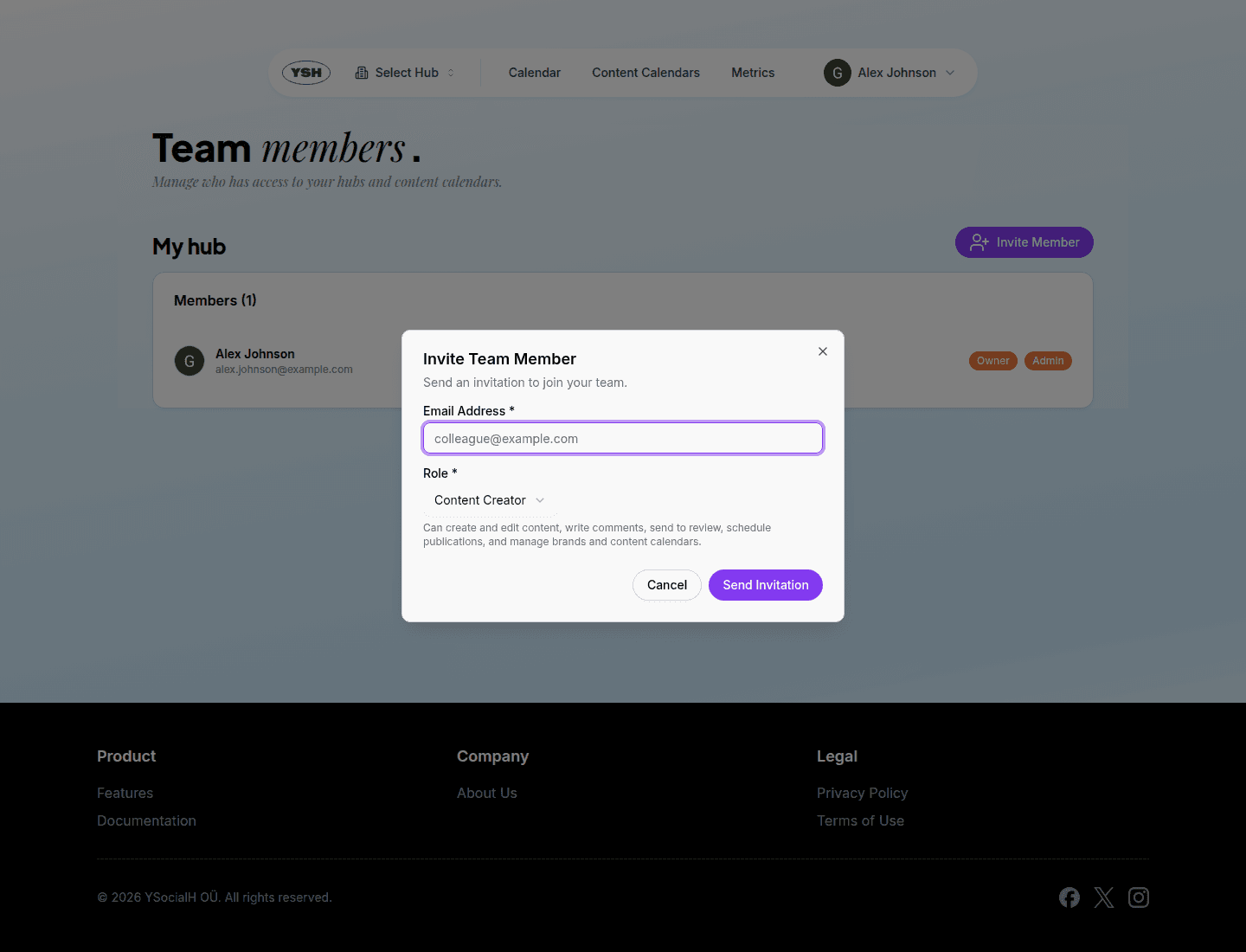
The invitee receives an email with an acceptance link. Until they accept, the invitation is listed as pending and can be cancelled.
Managing Members
Admins can change a member's role or remove a member from the team directly in the member list. Any member can leave a team themselves (except the last admin).